Canned Responses in Outlook: Native Quick Parts vs a Panel
Outlook users have two built-in ways to avoid retyping: Quick Parts (a reusable block you insert from the Insert menu) and AutoText/templates on newer builds. Both are free and both are fine — as long as every message you send lives in Outlook.
Quick Parts, honestly reviewed
Good: no install, supports formatting and images, syncs with your mailbox if you use the right build.
Bad: three clicks deep (Insert → Quick Parts → pick one), no search, and the gallery becomes a scroll once you pass a dozen entries. New Outlook for Windows has improved this; classic Outlook has not.
Where the boundary is
The moment your replies also happen in a CRM, a support tool, a chat app or a community platform, Outlook's library stops helping — and you end up maintaining the same five answers in three places.
Two strategies:
- Keep everything in Outlook and accept that other channels are typed by hand. Fine if email is 90% of your volume.
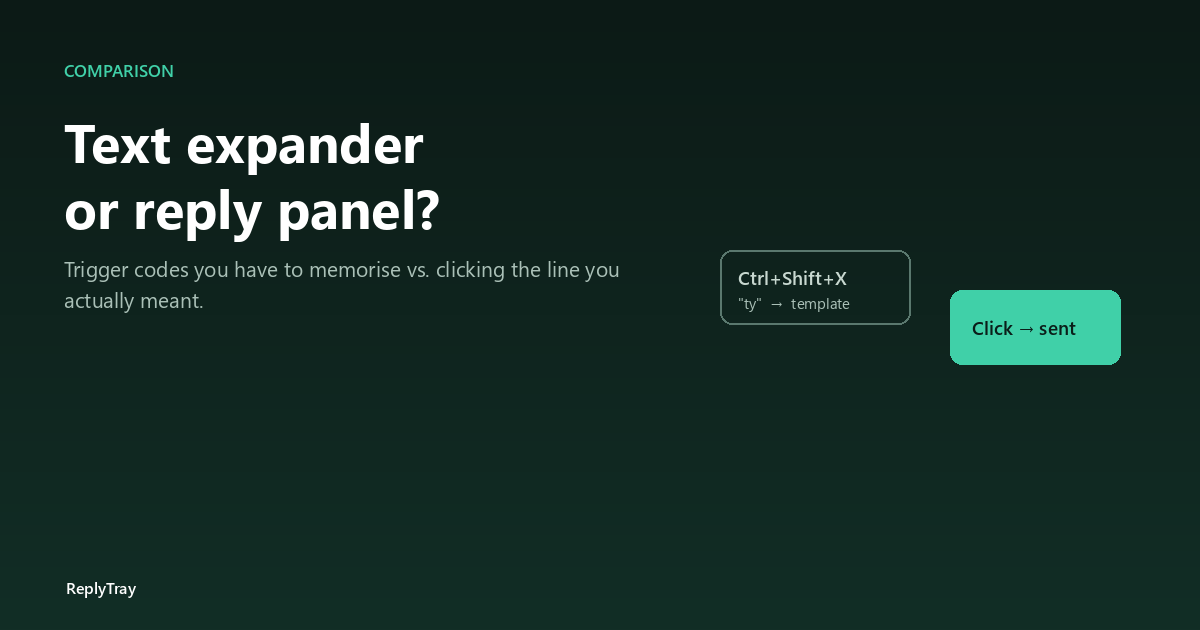
- Move the library out to something channel-agnostic — a shared doc (slow, but free), a text expander (needs trigger codes), or a panel that pastes into whatever window you are in.
Which one for which job
Email is still the channel where people write the longest replies, so email templates tend to be long and rarely adapted. That is a good fit for Quick Parts: same paragraph, same formatting, inserted whole.
Chat and comments are the opposite — short lines adapted per person, high volume. That is a poor fit for a menu-driven template gallery, and the reason panels exist. Longer comparison here.
The test
Count the replies you send twice a week. If more than half of them are outside Outlook, keeping the library inside Outlook is costing you a minute every time — roughly half an hour a week you will never notice losing.